Last updated: November 12, 2026
Quick Answer: Set up 4 core parts in one writing workspace for solo writers: one home, one draft area, one prompt library, and one notes folder. That keeps AI help inside a system instead of scattering across tabs.
If you are learning how to set up an AI writing workspace for solo writers, start with one system and four parts. This article shows the folder layout, tool mix, and daily setup that keep solo writing usable.
What a solo AI writing workspace should hold
Picture this: you open your laptop to write, and every file you need is already in the same place. Your draft is in one tab, your notes are in another, and your prompt library is one click away. That is the point of an AI writing workspace for solo writers. It should keep drafts, notes, prompts, and exports within reach without making you hunt.
A good workspace does not need fancy software. A Google Docs file, a Notion page, a simple notes app, and a clear folder tree can do the job. The point is not to collect tools. The point is to make each tool do one job.
A simple solo setup needs these parts:
- Home base: one app where you start every session.
- Draft folder: one place for active writing.
- Notes folder: one place for research, source links, and raw ideas.
- Prompt library: saved prompts you reuse instead of rewriting.
- Archive folder: finished drafts, old versions, and export files.
That structure sounds plain. Plain is easier to keep. A workspace that depends on memory falls apart the first time you skip a day.
The simplest setup is the one you can explain in 30 seconds. If you cannot describe where the draft lives, where the notes live, and where the prompts live, the system is too messy for solo work.
How do I set up the folder structure first?
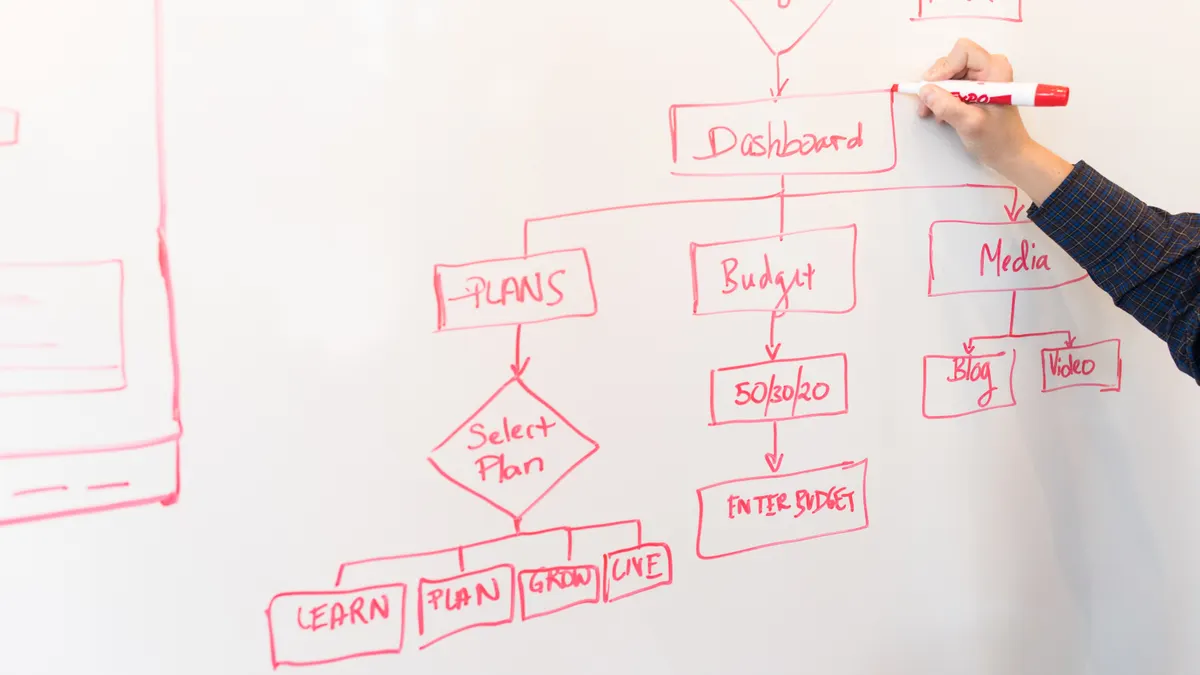
You set up the folder structure first by creating a simple root folder with four main folders: Drafts, Notes, Prompts, and Archive. That gives every file a fixed home before the AI ever enters the picture.
Start in Google Drive, Dropbox, or another cloud drive you already use. Then build a top-level folder called something like AI Writing Workspace. Inside it, create these folders:
- Drafts for active pieces.
- Notes for research, outlines, source clips, and ideas.
- Prompts for reusable instructions.
- Archive for completed work.
- Exports if you send files to clients, editors, or publishing platforms.
Inside Drafts, use subfolders by project or client. A solo writer who writes a newsletter, blog post, and sales page in the same month needs that separation fast. If you write only for yourself, use dates or topic names. Keep the structure boring. Boring is searchable.
Inside Notes, split by subject if you need it: research, voice notes, snippets, and source links. That keeps raw material from getting mixed into the draft itself. Put the date in file names when the notes could be reused later. A file called 2026-11-brief-notes is easier to find than ideas-final-final.
Two rules keep the system clean. First, never leave a file loose at the root level. Second, never create a new folder because you are in a hurry. New folders are how messy systems grow. The truth is, folder discipline beats clever naming.
Where should Google Docs and Notion fit?
Google Docs should hold the active draft, and Notion should hold the system around it. That split works because Docs is better for long-form writing and comments, while Notion is better for templates, databases, and reference pages.
Use Google Docs for anything that needs quick typing, simple sharing, or version history. Keep the live article there while you draft. The file should contain the working title, outline, and body text. If you collaborate with an editor later, Docs keeps that handoff simple.
Use Notion for structure: project cards, status labels, content briefs, and your prompt library. A Notion page can act like a control room without turning into the writing room itself. If you try to write every draft inside a large Notion dashboard, you can spend more time arranging blocks than writing sentences.
A clean split looks like this:
- Notion: planning, status, prompt storage, topic lists.
- Google Docs: drafting, rewriting, editing, final text.
- Cloud folder: backups, exports, and attachments.
That split also reduces context switching. You do not need to open eight tabs to find one paragraph. You open Notion for the plan, Docs for the draft, and the folder for anything attached.
A matching title in both tools is enough to keep them linked. A Notion card named AI Writing Workspace Article and a Google Doc with the same name are enough to keep them matched. No complex automation required.
Build a prompt library you can reuse
Picture this: you keep rewriting the same instructions for tone, outline, and edits every time you ask an AI tool for help. A prompt library ends that waste by storing your best prompts in one place, ready to copy and adjust.
Your prompt library should live in one folder and one format. A Notion page works well, or a Google Doc if you want something simpler. The important part is that every prompt has a label, a use case, and a short note about when to use it.
Build it around these types of prompts:
- Brainstorm prompts for ideas and angles.
- Outline prompts for structure.
- Draft prompts for first-pass prose.
- Edit prompts for tightening and cleanup.
- Rewrite prompts for voice, clarity, or length.
Keep each prompt short enough to scan in under a minute. If a prompt runs to half a page, it usually has too many instructions. Put the core version at the top and the longer version below it only if you truly need both.
A solid prompt entry should include:
- the prompt text
- the result it usually gives
- the tool you use it with
- a note like “works best for blog intros” or “use after outline is set”
That small note matters. It stops you from using a prompt in the wrong stage and then blaming the tool for a bad result. A prompt library is not a magic box. It is a repeatable set of instructions that saves time when the task is familiar.
What workflow layout keeps solo writing moving?
A simple workflow layout keeps solo writing moving by separating idea capture, drafting, revision, and archive. You want each stage to have one place and one purpose so the project does not blur into a pile of half-finished tabs.
Here’s a practical solo flow that fits one person and one laptop:
- Capture the idea in Notes with a title, source links, and a rough angle.
- Move the project to a Notion card or page with status labels like Drafting or Editing.
- Open the matching Google Docs file and write the outline.
- Use your prompt library to generate a first pass, then edit by hand.
- Save the final version in Archive and export a copy if needed.
Each step has a job. Notes collect raw input. Notion tracks the project. Docs holds the live text. Archive keeps the finished file out of the way. That order matters because AI writing gets messy when the draft, notes, and finished copy all sit in the same place.
Set a naming rule before you start. Use a format like topic-stage-date or client-topic-version. That gives you a 10-second scan pattern when you are looking for the right file. It also keeps version drift under control. A file called email-launch-v3 is better than three similar files called email draft, final, and final2.
If you want one habit that pays off fast, make it this: every session ends with a file move. Drafts move forward, notes stay put, and finished work gets archived. A workspace only feels organized when the files travel in one direction.
Common setup mistakes that slow solo writers down
Picture this: your workspace looks polished, but every project still stalls because you cannot find the latest draft or the prompt you used last week. That usually means the system is overbuilt, undernamed, or split across too many tools.
The most common mistake is using too many apps. One app for notes, another for prompts, a third for drafts, and a fourth for tracking is enough. More than that, and your setup starts eating the time you meant to save. Pick fewer tools and make each one more disciplined.
Another mistake is keeping prompts inside chat history only. Chat logs are hard to scan and harder to reuse. Save the prompt you want to keep in a library the same day you find it. Otherwise, you will spend 15 minutes hunting for the exact wording you already used.
A third mistake is letting the notes folder turn into a junk drawer. Raw clips, screenshots, PDFs, and half-formed ideas need labels. Put each item in a subfolder or give it a file name that explains what it is. Unnamed notes are why solo writers stop trusting their own system.
- Too many apps cost focus.
- Hidden prompts cost time.
- Unnamed notes cost trust.
- Loose drafts cost version control.
One more trap is building for a future version of yourself who has more time. That future person may never show up. Build for the writer who needs to get from idea to published draft on a normal Tuesday.
A workspace setup you can finish in one afternoon
You can finish the core setup in one afternoon if you keep the system simple and ignore anything that does not help the next draft. The goal is not perfection. The goal is a workspace that is ready before the next deadline shows up.
Use this checklist:
- Create the root folder: AI Writing Workspace.
- Add Drafts, Notes, Prompts, Archive, and Exports.
- Set up one Google Docs template for active drafts.
- Set up one Notion page or database for project tracking.
- Copy your best prompts into a prompt library.
- Name one sample project from start to finish.
- Move one finished file into Archive.
If you are tempted to add a dashboard, a color code, and six custom statuses, stop there. Those extras can wait. A solo writer needs a workspace that saves time on day one, not a system that looks impressive and collapses by Friday.
For writers who want a broader setup view, the hub on AI Writing Tool Selection and Setup belongs next in the chain. This page handles the workspace itself; the hub handles the bigger tool landscape.
Key Takeaways
- Keep the system small: one place for drafts, one for notes, one for prompts, one archive.
- Use Google Docs for active writing and Notion for structure, not for everything.
- Save prompts in a library you can scan in under a minute.
- Name files and folders so you can find them without thinking.
- Archive finished work every time so the workspace stays usable.
What should a solo AI writing workspace include?
A solo AI writing workspace should include a draft area, a notes area, a prompt library, and an archive. Those four pieces cover the full path from idea to finished text without forcing you to keep everything in one giant file.
A simple version can live in Google Docs, Notion, and a cloud folder. The exact tools matter less than the structure. If you can find the latest draft in seconds, the setup is working.
How do writers organize tools and drafts in one place?
Writers organize tools and drafts in one place by giving each tool a single job. Google Docs can hold the live draft, Notion can track the project, and a folder system can store notes, prompts, and archived files.
The key is consistency. Use the same naming pattern for every project and move files into the same locations every time. That keeps the workspace readable even when you have several drafts open at once.
Drafted with AI; not yet reviewed by a person.